Learn Automation #2: AI Content Pipeline in n8n, Make AI Agents, and Error Workflows
One workflow. One tool. One tip. Every week.
Want this in your inbox every week? Subscribe to Learn Automation →
⚡ This Week’s Workflow
Build an AI Content Repurposing Pipeline in n8n
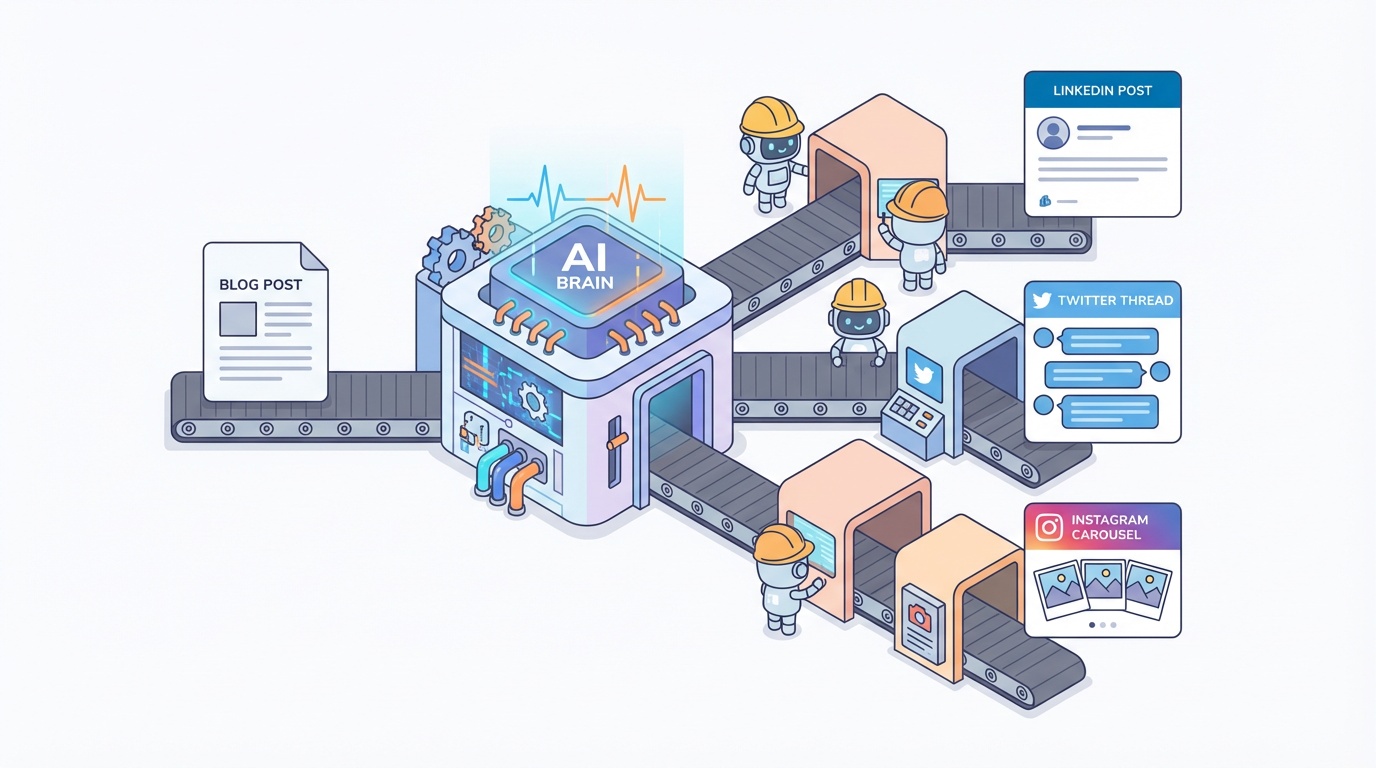
You wrote a blog post. Now you need a LinkedIn post, a Twitter thread, and an Instagram carousel — all covering the same topic but in different formats. Instead of rewriting everything manually, let AI handle the repurposing while you focus on the next piece.
This workflow takes a single content idea (or an existing blog post URL), researches the topic with AI, and generates platform-specific content — ready to publish.
Tools you’ll need: n8n (self-hosted or cloud), an OpenAI or Claude API key, and accounts for whichever social platforms you want to post to.
Here’s how to build it:
-
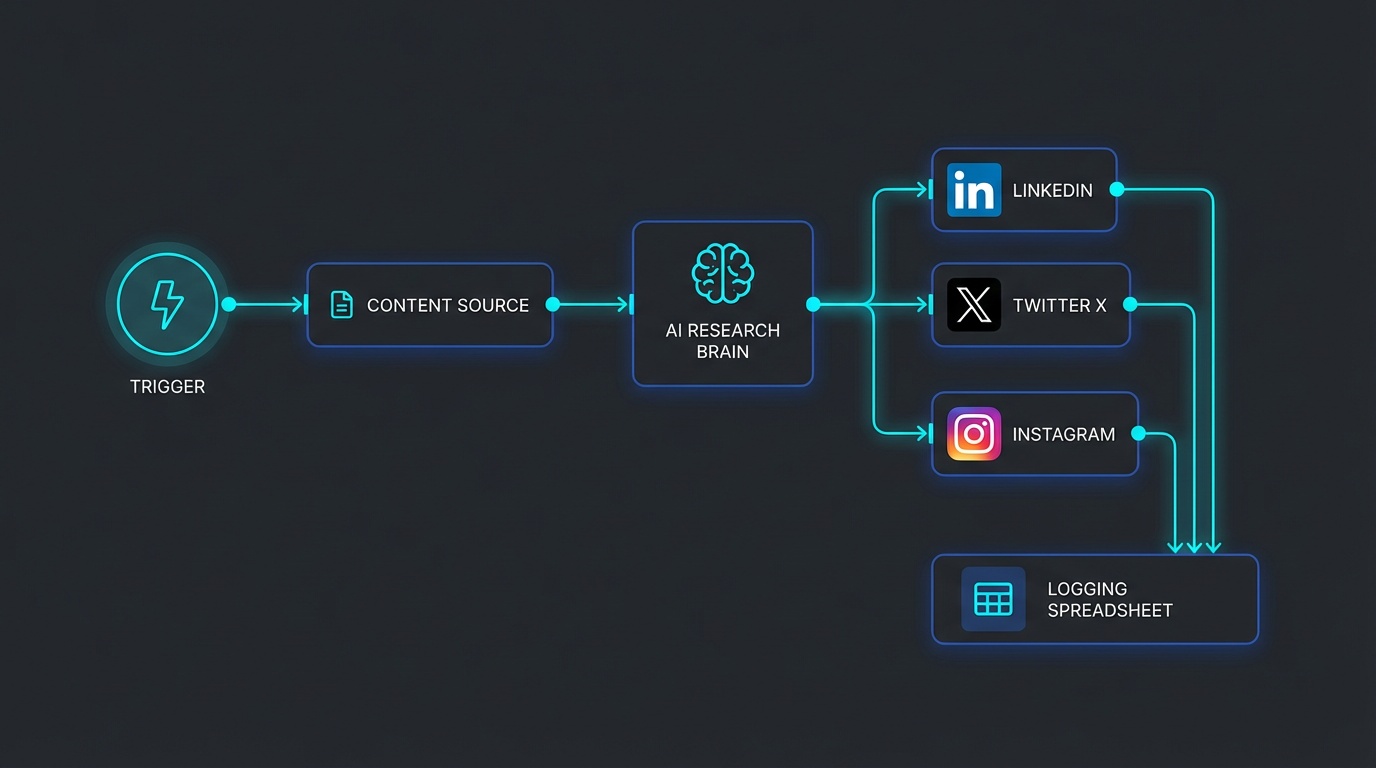
Set up your trigger. Create a new n8n workflow and add a Manual Trigger node (for testing) or a Schedule Trigger to run weekly. You can also use a Webhook trigger if you want to kick it off from another tool.
-
Add your content source. Use an HTTP Request node to fetch your latest blog post via RSS feed or URL. Alternatively, connect a Google Sheets node where you keep a running list of content ideas — the workflow pulls the next unprocessed row.
-
Research with AI. Add an AI Agent node connected to your LLM of choice (OpenAI or Anthropic). Give it a system prompt like: “You are a content researcher. Given a topic or blog post, identify the 3 most interesting angles for social media. Return them as bullet points with a suggested hook for each.” Feed in the content from step 2.
-
Generate platform-specific drafts. Add three parallel branches after the research node, each with its own AI node:
- LinkedIn: System prompt focused on professional insights, 150-200 words, with a hook question
- Twitter/X: System prompt for a punchy thread — 5-7 tweets, numbered, with the first tweet as a hook
- Instagram: System prompt for carousel slides — 8-10 short text blocks that work as image overlays
-
Review or auto-publish. For each branch, add either a Slack/Email notification node (sends you the drafts for manual review) or connect directly to each platform’s API. Start with the review approach — you’ll want to check quality before going fully hands-free.
-
Log everything. Add a Google Sheets or Airtable node at the end to track what was generated, when, and which platform it went to. This prevents duplicate posts and gives you a content calendar.
Take it further: Add a Sentiment Analysis node before publishing to flag any content that might read negatively. Or connect to a URL shortener API so you can track click-throughs from each platform.
Inspired by Sabrina Ramonov’s n8n AI content workflow (Feb 2026)
🔧 Tool of the Week
Make AI Agents (New)
Make just launched AI Agents in open beta — available on all plans, including free. This is Make’s take on autonomous AI workflows: instead of you mapping out every step in a scenario, you give an AI agent instructions, connect it to tools (existing Make modules), and let it reason through the task on its own.
The way it works: you pick an LLM provider (OpenAI, Anthropic, or Google), write natural language instructions for what you want accomplished, and attach tools the agent can use — like “search Gmail,” “create a Slack message,” or “update a spreadsheet.” The agent decides which tools to call and in what order based on your input.
Practical example: Build a sales outreach agent that watches your inbox for new leads, researches their company using a web search tool, qualifies them against your criteria, checks your calendar availability, and drafts a personalized follow-up — all without you defining the exact sequence. You provide the goal; the agent figures out the steps.
What makes it interesting: Unlike competitors that require you to design every conditional branch, Make’s approach lets the AI handle the decision logic. For workflows where the path depends on unpredictable inputs (like lead qualification or customer support triage), this removes a lot of “if-then” complexity.
Skip if: You need deterministic, repeatable workflows where every step must execute the same way every time. Traditional Make scenarios are still better for things like data sync or scheduled reports where predictability matters more than flexibility. AI agents also mean higher API costs since the LLM is making decisions on every run.
Released February 2, 2026 — full documentation
💡 Quick Tip
Always Create a Dedicated Error Workflow in n8n
If you’re building n8n workflows without a dedicated error workflow, you’re flying blind when things break — and they will break.
Go to Settings → Error Workflow in any n8n workflow and point it to a separate workflow that handles failures. This error workflow receives the failed execution data automatically, including which node failed and why.
A simple error workflow should:
- Send you a Slack or email notification with the error message and workflow name
- Log the failure to a Google Sheet or database for tracking patterns
- Optionally retry the failed workflow using the n8n API
For individual nodes that you expect to fail occasionally (like API calls to flaky services), set the node’s Error Handling to “Continue on Fail” or “Retry on Fail” with exponential backoff — right-click the node → Settings → On Error.
This takes 10 minutes to set up and saves hours of debugging silent failures.
Source: n8n’s 15 best practices for deploying AI agents in production
That’s it for this week.
Got a question about a workflow, or something you’d like me to break down next? Just hit reply — I read everything.
— Sebastian
Subscribe to Learn Automation → — One workflow. One tool. One tip. Every week.